
Download LG Bridge – free LG device manager, file transfer, backup tool
Introduction & Overview
LG Bridge is a free companion utility designed specifically for LG smartphones and tablets. Developed by LG Electronics, this lightweight desktop program lets you connect your LG device to a Windows or macOS computer and manage it with three core functions: file transfer via LG AirDrive, data backup & restore through LG Backup, and software update checking. The tool is built for users who want a secure, hassle‑free way to move media, protect personal settings, and keep their firmware up‑to‑date without hunting through menus on the device itself. Because the application is free and does not require a separate account, it is especially attractive for casual users and power users alike who value a straightforward, drag‑and‑drop interface.
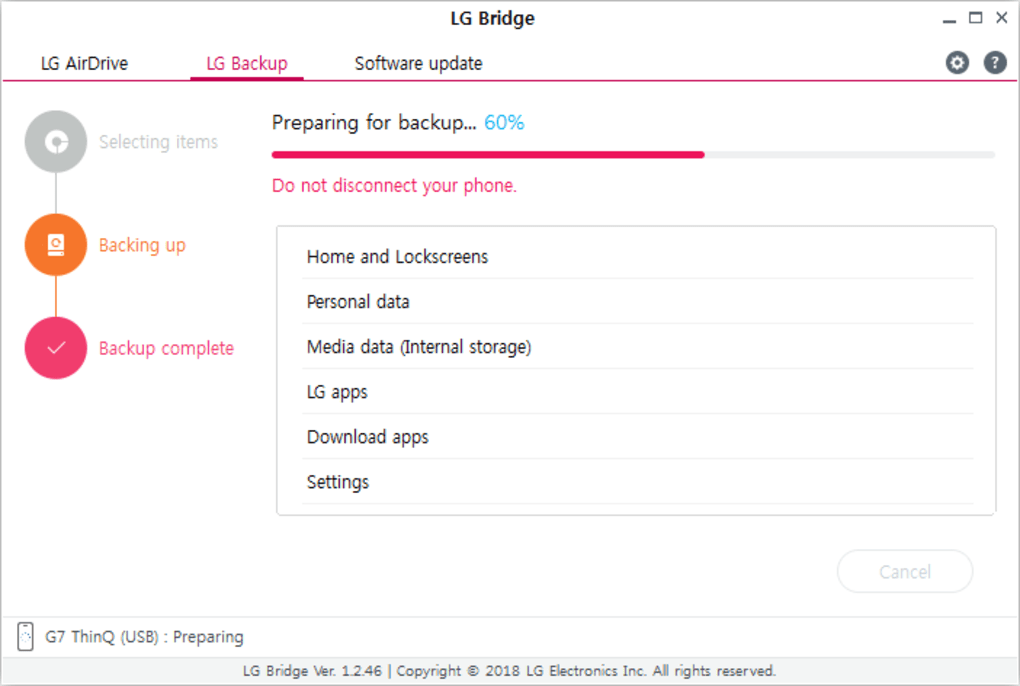
When you launch LG Bridge after connecting your phone via USB, the program automatically detects the device and presents three clearly labeled tabs. Each tab isolates a single workflow, reducing the learning curve. LG AirDrive works like a traditional file explorer, allowing you to copy photos, videos, music, and documents with simple drag‑and‑drop actions. LG Backup creates a complete snapshot of your phone’s apps, system settings, home screen layout, and even lock‑screen wallpaper, storing the backup on your PC for future restoration. Finally, the Software Update tab contacts LG’s servers to see whether a newer firmware version is available, giving you the confidence that your device runs the latest security patches.
The utility is continuously updated by LG to add support for newer models and improve stability. While not every LG handset is compatible—especially older feature phones—the official LG website provides a compatibility list so you can verify support before downloading. Overall, LG Bridge offers a convenient, all‑in‑one solution for anyone looking to manage their LG devices from a desktop environment.
Core Features & How They Work
- LG AirDrive (File Transfer) – Drag‑and‑drop interface for moving photos, videos, music, documents, and app data between your LG device and PC. Supports both Windows Explorer and macOS Finder style browsing.
- LG Backup (Data Backup & Restore) – Creates a full backup of apps, app data, system settings, home screen layout, lock‑screen wallpaper, and user‑generated content. Backups are stored locally on your computer, giving you full control over the data.
- Software Update Checker – Connects to LG’s official servers to detect the latest firmware version for your device, prompting you to download and install updates directly from the desktop.
- Secure USB Connection – Utilises the standard MTP (Media Transfer Protocol) and PTP (Picture Transfer Protocol) channels, ensuring that data is transferred over an encrypted, trusted connection.
- Automatic Device Detection – Once the USB cable is plugged in and the phone is set to “File Transfer” mode, LG Bridge automatically recognizes the device and displays its name in the interface.
- Multi‑Device Management – You can switch between multiple LG phones or tablets without restarting the application, making it ideal for developers or families with several devices.
Each feature is compartmentalized into its own tab, allowing you to focus on one task at a time. For example, if you only need to move a batch of photos, you open the LG AirDrive tab, select the DCIM folder on your phone, and drag the images to a folder on your PC. The program shows a progress bar, estimates remaining time, and notifies you when the transfer completes. The backup feature works similarly: you choose “Create Backup,” name the backup file, and let LG Bridge copy everything in the background. Restoring is just as simple—pick a previously saved backup, click “Restore,” and the tool overwrites the phone’s data with the saved snapshot.
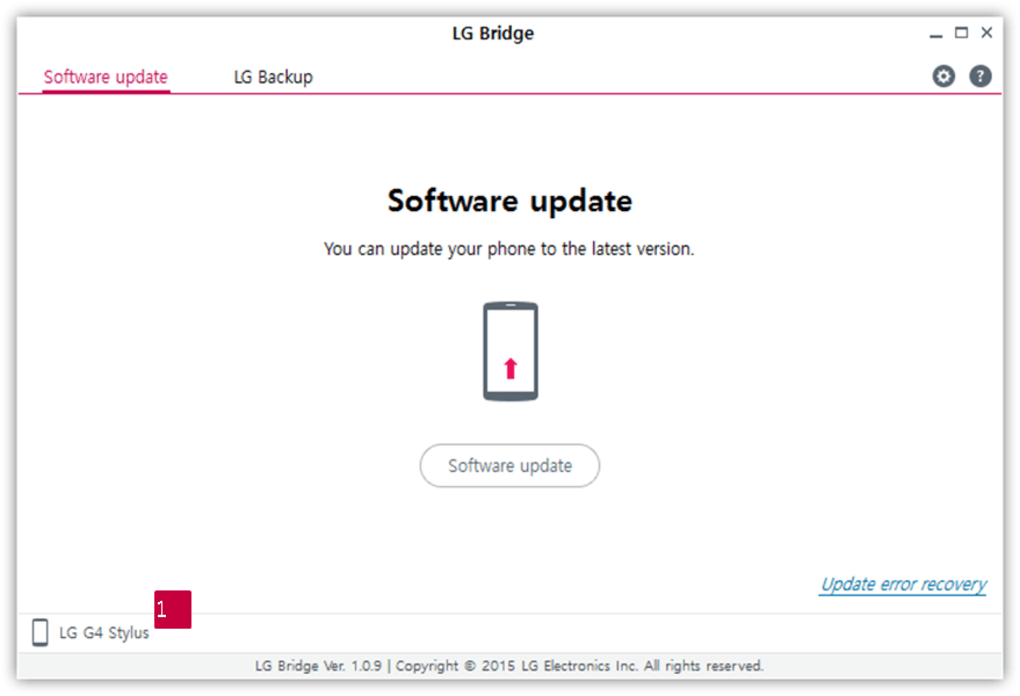
When checking for firmware updates, LG Bridge displays the current version installed on your device alongside the latest version available. If an update exists, you can download the OTA (over‑the‑air) package directly to your PC and then push it to the phone, bypassing the need for a mobile data connection. This is especially useful for users on limited data plans or those who prefer a wired, more reliable update process.
Installation, Usage, and Compatibility
Step‑by‑Step Installation
- Visit the official LG Bridge download page on LG’s website.
- Click the “Download for Windows” or “Download for macOS” button, depending on your operating system.
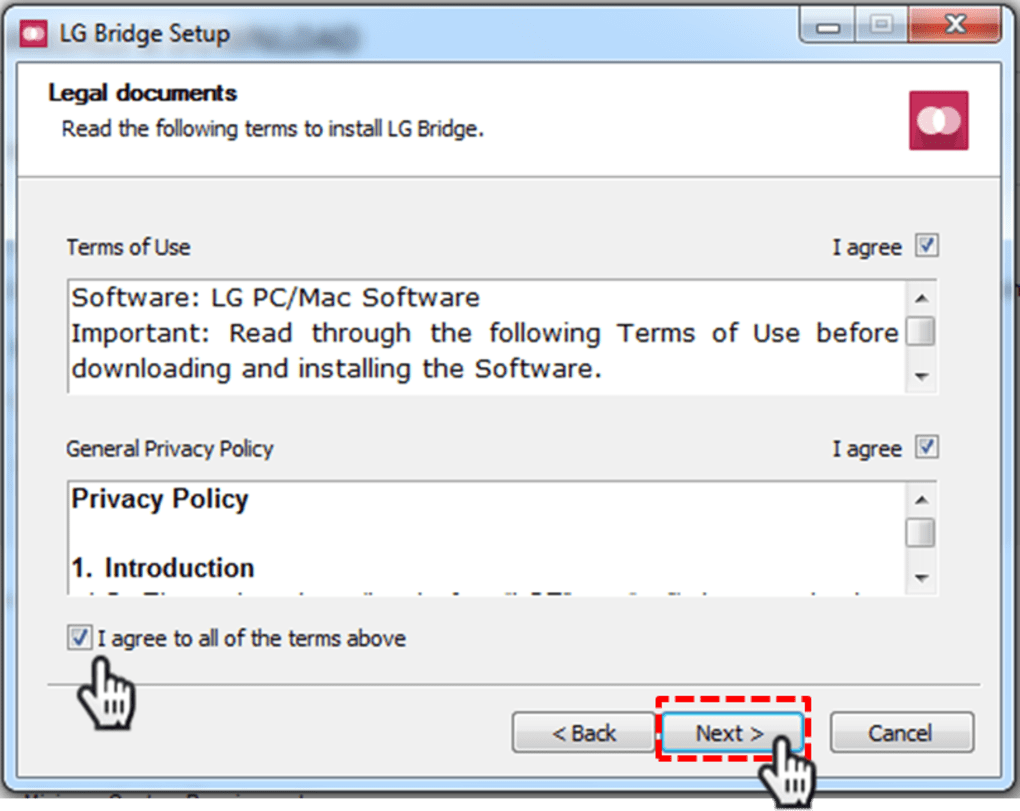
- Run the installer file (LGBridgeSetup.exe or LGBridge.dmg). The wizard will guide you through the standard “Next‑Next‑Finish” process.
- When prompted, allow the installer to install the required USB drivers. These drivers enable MTP communication between your PC and the LG device.
- After installation, launch LG Bridge from the desktop shortcut or start menu.
Connecting Your Device
Plug an original or high‑quality USB‑C/Micro‑USB cable into your LG phone or tablet. On the device, pull down the notification shade, tap the USB option, and select “File Transfer (MTP).” The PC will then recognize the device as a media source. Open LG Bridge; the software will automatically detect the phone and display its model name at the top of the window.
Using the Three Main Tabs
AirDrive: Navigate the left pane to locate folders on your phone. Drag files to the right pane (your PC) or vice‑versa. You can also right‑click for context actions such as “Delete” or “Rename.”
Backup: Click “Create Backup,” choose a destination folder on your PC, and give the backup a descriptive name (e.g., “Galaxy‑S22‑Backup‑2024‑10”). The process may take several minutes depending on the amount of data. To restore, select the backup file and click “Restore.”
Software Update: Press the “Check for Updates” button. If a newer firmware version is available, you’ll see a download button. Follow the on‑screen prompts to install the update; the phone will reboot automatically once the process finishes.
Compatibility (itemprop="operatingSystem")
LG Bridge officially supports Windows 10, Windows 11, and macOS 10.15 (Catalina) or later. The application works with most LG Android devices released after 2015, including the LG Velvet, LG V60, LG Wing, and a range of G‑series phones. Some older feature phones and legacy Android versions may lack the required drivers, so it’s advisable to check the LG compatibility list before installing.
If you encounter detection issues, ensure that:
- The USB cable is data‑capable (not a charging‑only cable).
- USB debugging is disabled unless you’re using the tool for development.
- The latest LG USB drivers are installed (the installer typically adds them automatically).
Overall, the installation process is straightforward, and the UI is intuitive enough for non‑technical users while still offering enough depth for power users who need granular control over backups and updates.
Pros, Cons, and Frequently Asked Questions
Pros
- Free of charge – No hidden fees, subscriptions, or ads.
- All‑in‑one solution – Handles file transfers, backups, and firmware updates from a single interface.
- Secure USB connection – Uses standard MTP/PTP protocols, keeping data transfer safe.
- Cross‑platform support – Available for both Windows and macOS.
- Easy to use – Drag‑and‑drop file transfer and one‑click backup/restore.
Cons
- Limited to LG devices; not useful for non‑LG Android phones.
- Older LG models may lack driver support, requiring manual driver installation.
- No cloud backup option – backups are stored locally on the PC only.
- Interface feels dated compared to newer third‑party managers.
- Software updates rely on LG’s server availability; occasional latency.
FAQ (FAQPage)
-
Is LG Bridge compatible with my LG G8 ThinQ?
Yes, the LG G8 ThinQ is supported. Just ensure you have the latest version of LG Bridge installed and that the device is set to “File Transfer” mode when connecting via USB.
-
Can I use LG Bridge on a Linux machine?
Officially, LG Bridge is only released for Windows and macOS. Some users have reported limited success using Wine on Linux, but this is not officially supported.
-
Do I need to enable USB debugging to use LG Bridge?
No. USB debugging is only required for development tools. LG Bridge works with the standard “File Transfer” (MTP) mode, which is enabled through the USB notification on your device.
-
How often should I back up my phone with LG Bridge?
It’s recommended to create a backup at least once a month, or after major changes such as installing new apps, updating the OS, or before performing a factory reset.
-
Will LG Bridge erase my data during a firmware update?
No. Firmware updates performed through LG Bridge follow the same OTA process as on-device updates and do not delete personal data. However, it’s always wise to create a backup before updating.
Conclusion & Call to Action
LG Bridge stands out as a reliable, free companion tool for anyone who owns an LG smartphone or tablet. By consolidating file transfers, comprehensive backups, and firmware update checks into a single, easy‑to‑navigate desktop program, it saves users time and reduces the need to juggle multiple apps. While the UI may feel a bit dated and the tool is limited to LG devices, its core functionality remains solid, especially for users who prefer a wired connection for speed and security.
If you’ve been looking for a straightforward way to move photos, safeguard your settings, or ensure your device runs the latest software, LG Bridge delivers exactly that. The installation process is quick, the drag‑and‑drop interface is intuitive, and the backup feature gives you peace of mind before major changes. Just double‑check compatibility on LG’s website, download the appropriate version for your operating system, and you’ll be ready to manage your LG device like a pro.
Ready to streamline your LG device management? Download LG Bridge now and experience hassle‑free file transfers, secure backups, and timely updates—all at no cost.







